The application has rich content and requires a stable Wi-Fi connection to download correctly. If your application does not download correctly, delete it and try to download again when you have a more stable Wi-Fi connection. During initial installation, the download may take several minutes while the application saves all the photos on your Smartphone or tablet.
You must create an account and log in to your app to access this feature.
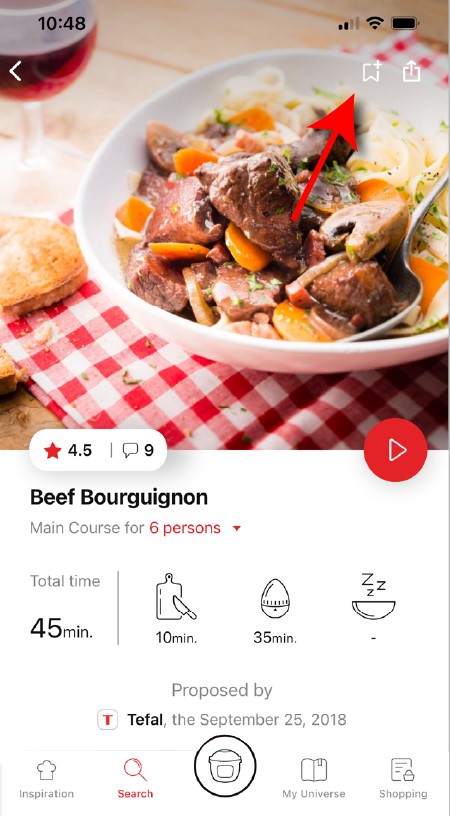
• Go to the recipe you wish to bookmark and select the bookmark logo in the top right corner. • A "My Notebooks" tab appears: select the "My Favorites" location. • The recipe has been added.
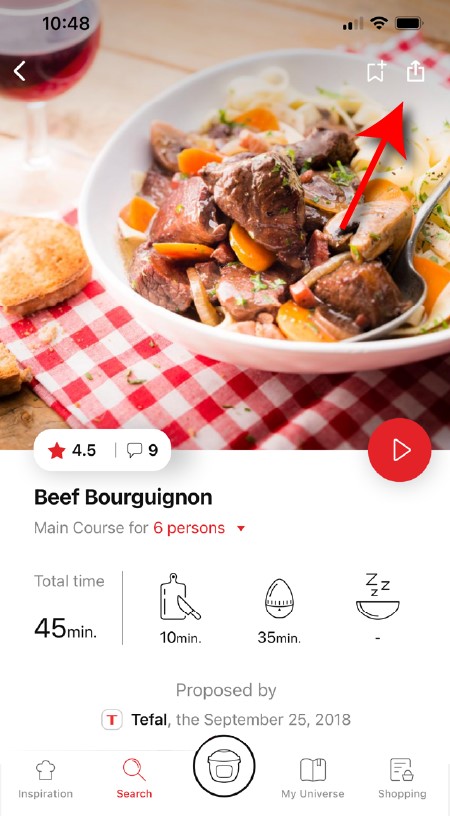
You need to create an account and sign in to the application in order to access this feature. Click the sharing logo to view the sharing options. You can then choose how you would like to share this recipe.
Your application uses notifications to alert you at the end of cooking times using a beep. If you want to turn off this signal, simply deactivate it in your tablet or Smartphone. You may also disable sounds in the parameter settings for notifications on your telephone or tablet.
Your application uses notifications to alert you when your cooking is finished but also to let you know when new content (information, recipe...) is available. If you wish, you can disable them from your smartphone settings.
You must create an account and log in to your app to access these features.
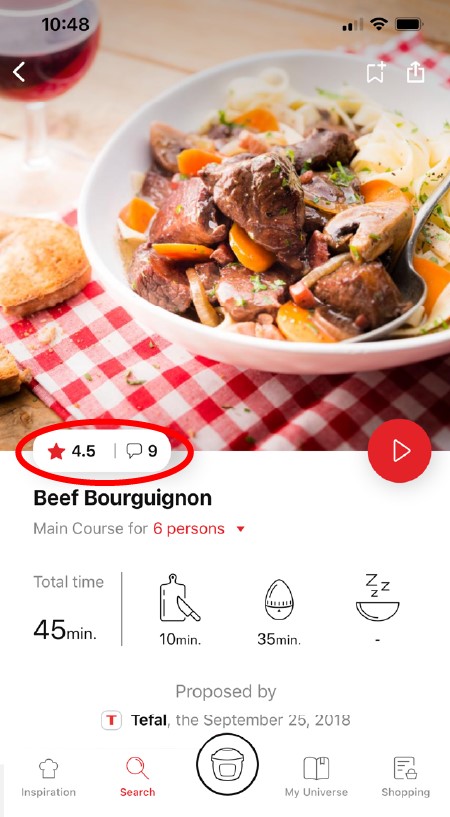
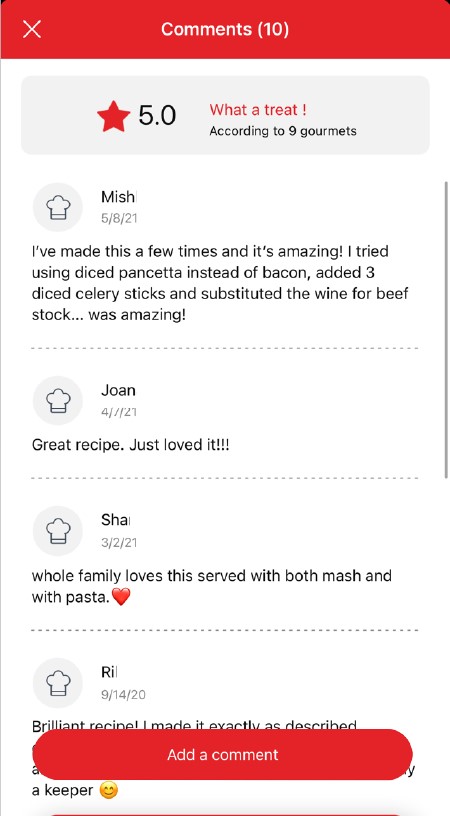
Once logged in, you will be able to read the comments and see the notes that community members have given to the recipe by clicking on the notes/comments area.
Once you have completed your search, specific filters make it easier for you to find the recipes that meet your needs.
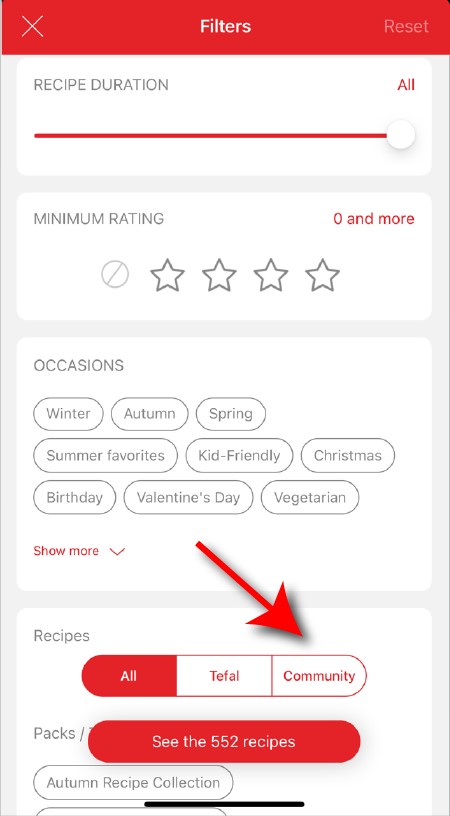
The customizable filter: • Click on "Filter" in order to sort the recipes according to the type of dish (starter, main course, dessert), the time it takes to make the recipe, the minimum rating, their themes (or packs)... • You can also choose to select only the recipes of the brand or the recipes proposed by the community.
Sorting recipes: Once you have made a search, you can sort your recipes by popularity, rating, age or alphabetical order.
You must create an account and log in to your app to access this feature.
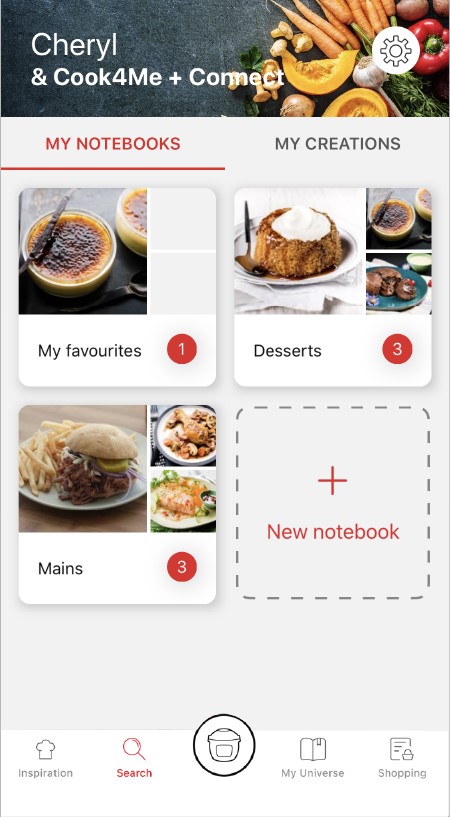
• Choose the "My Universe" tab in the navigation bar. • There, you will find your recipe booklets and can create new ones by clicking on "New booklet".
You must create an account and log in to your app to access these features.
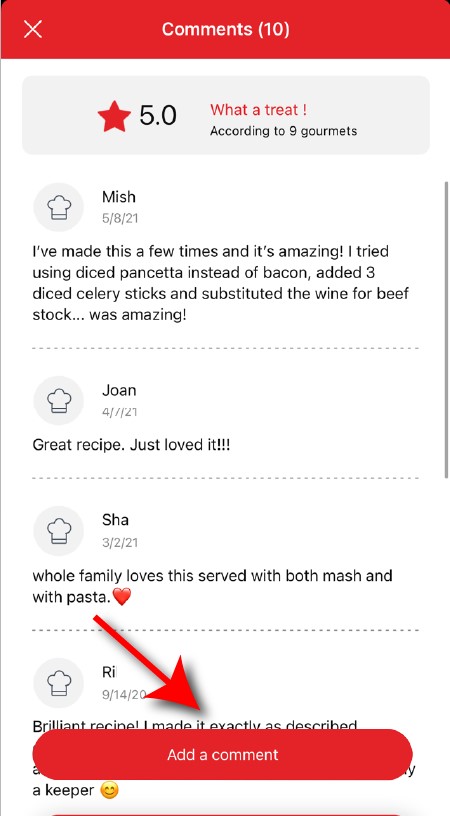
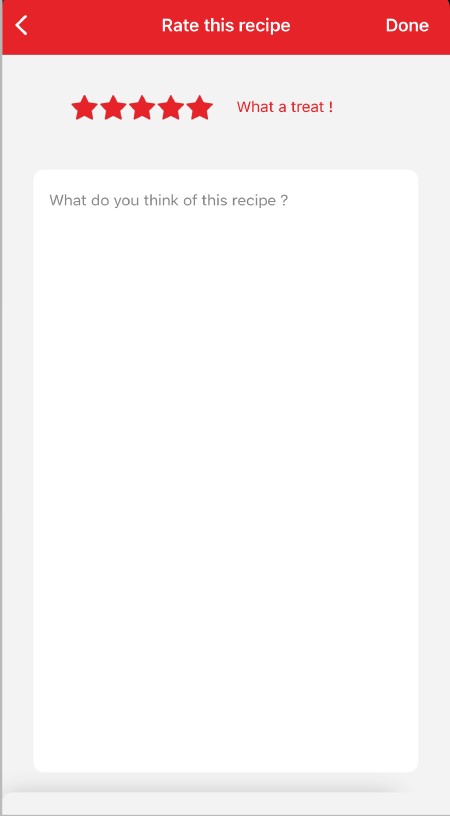
Once logged into your account, you will be able to rate the recipe and add a comment by following the instructions that appear on the screen after clicking on the notes/comments space.
The app is no longer compatible on Android versions 4.4.4 or lower, because of reinforced data security.
As far as possible, we recommend that you update your device to a higher Android version or use another compatible device.
Updates will not only allow you to enjoy a richer experience with new features and compatibility with the latest technology, but will also protect you against possible security vulnerabilities that have been fixed in the latest versions.
Choose the "My Universe" tab in the navigation bar, then select the booklet you wish to modify or delete. Click on the pencil at the top right of the screen, then select the action you are looking for ("Delete booklet", "Rename booklet" or "Delete recipes").
When using the search function, select "Filter recipes". In the "Recipes" section, select "Community" only. You will then be able to see the recipes from the community.
• In "My universe", select "My profile". • Click on the image of the registered product. • Click on "Remove the product". The app will then ask you to select a product.
It is important to select your product in the app in order to find the right recipes for that product. This way, the app will suggest hundreds of ideal recipes. It will also let you add your accessories and access the associated recipes.
You must create an account and log in to your app to access this feature.
• Go to the recipe you wish to bookmark and select the bookmark logo in the top right corner. • A "My Notebooks" tab appears: select the "My Favorites" location. • The recipe has been added.
You need to create an account and sign in to the application in order to access this feature. Click the sharing logo to view the sharing options. You can then choose how you would like to share this recipe.
The application has rich content and requires a stable Wi-Fi connection to download correctly. If your application does not download correctly, delete it and try to download again when you have a more stable Wi-Fi connection. During initial installation, the download may take several minutes while the application saves all the photos on your Smartphone or tablet.
Your application uses notifications to alert you at the end of cooking times using a beep. If you want to turn off this signal, simply deactivate it in your tablet or Smartphone. You may also disable sounds in the parameter settings for notifications on your telephone or tablet.
Your application uses notifications to alert you when your cooking is finished but also to let you know when new content (information, recipe...) is available. If you wish, you can disable them from your smartphone settings.
You must create an account and log in to your app to access these features.
Once logged into your account, you will be able to rate the recipe and add a comment by following the instructions that appear on the screen after clicking on the notes/comments space.
When using the search function, select "Filter recipes". In the "Recipes" section, select "Community" only. You will then be able to see the recipes from the community.
Once you have completed your search, specific filters make it easier for you to find the recipes that meet your needs.
The customizable filter: • Click on "Filter" in order to sort the recipes according to the type of dish (starter, main course, dessert), the time it takes to make the recipe, the minimum rating, their themes (or packs)... • You can also choose to select only the recipes of the brand or the recipes proposed by the community.
Sorting recipes: Once you have made a search, you can sort your recipes by popularity, rating, age or alphabetical order.
You must create an account and log in to your app to access these features.
Once logged in, you will be able to read the comments and see the notes that community members have given to the recipe by clicking on the notes/comments area.
You must create an account and log in to your app to access this feature.
• Choose the "My Universe" tab in the navigation bar. • There, you will find your recipe booklets and can create new ones by clicking on "New booklet".
Choose the "My Universe" tab in the navigation bar, then select the booklet you wish to modify or delete. Click on the pencil at the top right of the screen, then select the action you are looking for ("Delete booklet", "Rename booklet" or "Delete recipes").
It is important to select your product in the app in order to find the right recipes for that product. This way, the app will suggest hundreds of ideal recipes. It will also let you add your accessories and access the associated recipes.
• In "My universe", select "My profile". • Click on the image of the registered product. • Click on "Remove the product". The app will then ask you to select a product.
There is no standby mode on your product. To stop a program anytime during the cooking process, press the start / stop button for 3 seconds. If you are not planning to use your appliance within the next hour, simply unplug it.
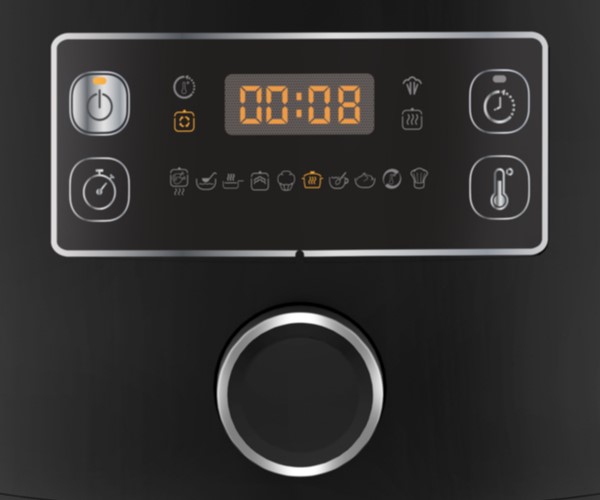
Rotative knob: you can switch from one program to another by turning the rotative knob and launch the program by short-pressing the start / stop button.
To stop a program anytime during the cooking, you just need to press the start / stop button during 3 seconds.
To adjust the temperature or the time of your program, first turn the rotative knob to select your program, then press the thermometer or timer buttons to adjust the settings. Turn the knob to the right to increase the cooking time or temperature, turn the knob to the left to decrease (if "Auto" is displayed on the screen, it means that the program's temperature or time are already optimized and therefore are not adjustable). When the temperature and time are adjusted to your desire, you can launch the cooking program by pressing the start / stop button.
To launch a delayed start, turn the rotative knob to select your program, adjust your temperature and time if needed, and press the button showing a little clock on the top right of the panel to set a delayed start. The small orange light lights on to indicate that the delayed start is on. Turn the knob to adjust the delayed start duration, and then press the start / stop button to launch the cooking program. The cooking phase will start when the delayed start time has elapsed.
This function is not available for all cooking modes or for all preparations. This is intentional to prevent possible bacterial growth that is undesirable for your health.
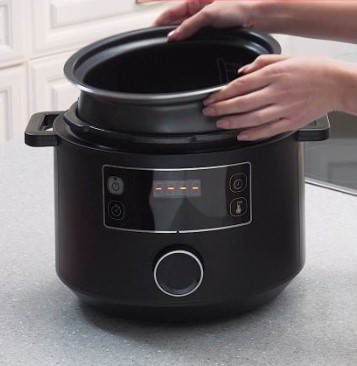
• The filling level of the bowl must never exceed the MAX level. • For food that may expand during cooking (rice, seeds, lentils, peas, etc.), do not fill the bowl beyond half its maximum capacity. • The bowl should always be filled with a minimum of 200 ml of liquid.
! Don't put your hands near the steam exhaust! It is possible that a slight flow of steam may escape from the back of the appliance during cooking.
• The required amount of water varies depending on the recipe and cooking time. • Always use a minimum of 200 ml of liquid. • Place the steam basket in the bowl and make sure that the food does not touch the lid.
! Do not put your hands near the steam exhaust! It is possible that a slight flow of steam may escape from the back of the appliance during decompression phase.
• Check that the silicone gasket is properly placed. • Check that the lid is in proper position for closing (align the small arrow and lock the lid clockwise). • Check for foreign bodies between the bowl and the heating plate. Remove the bowl and check that the heating plate, the central element and the underside of the bowl are clean. Also check that the central element can move freely. • The bowl may be deformed (after an impact, fall...). The bowl must be changed at an authorised service centre.
• This is normal, the odour will disappear completely after a few uses. • For a quick removal of the smell, you can put 0.5 liter of water, one cup of white vinegar and 2 slices of lemon in the cooking bowl, and launch a steam program for 10 minutes. • Be sure to thoroughly clean the items listed in the instructions: cooking vessel, metal lid, before re-using your appliance.
• Check that there is no cooking in progress. • Check that the pressure is fully released by pressing the pressure release button. • Unplug the product and wait until it cools completely.
Make sure that the power cable is connected to both your device and the mains power supply. If the problem persists, take your device to an authorized service centre.
• The silicone gasket in the lid is not in the proper position. In this case, let the appliance fully cool down, check the silicone gasket position, replace it properly if needed. • The safety valve and pressure release valve may be clogged, or not in the proper position. In this case, let the appliance fully cool down, check the valves position and make sure they are clean, then replace it properly. • If the problem persists after this check, take your product to an approved service centre.
The lid is not in the proper position. According to the cooking program selected, the lid needs to be fully locked, closed but not locked, or fully opened. Please refer to your user manual to check which lid position is suitable for each cooking program.
1. Make sure that the power cable is connected to the power supply. 2. If the product is powered, unplug the power cord for 10 - 15 seconds and then plug it back in.
If the problem persists, contact our customer service or take your device to an approved service centre.

 Cookies are used for audience measurement and personalization to help us improve your use of the product.